

Use =SUMIFS(sum_range, criteria_range1, criteria1, ...) to add numbers that meet one or more conditions. For example, =SUMIFS(C2:C8, A2:A8, "North", B2:B8, ">100") sums values in C where A is North and B is over 100.
=SUMIFS(C2:C8, A2:A8, "North")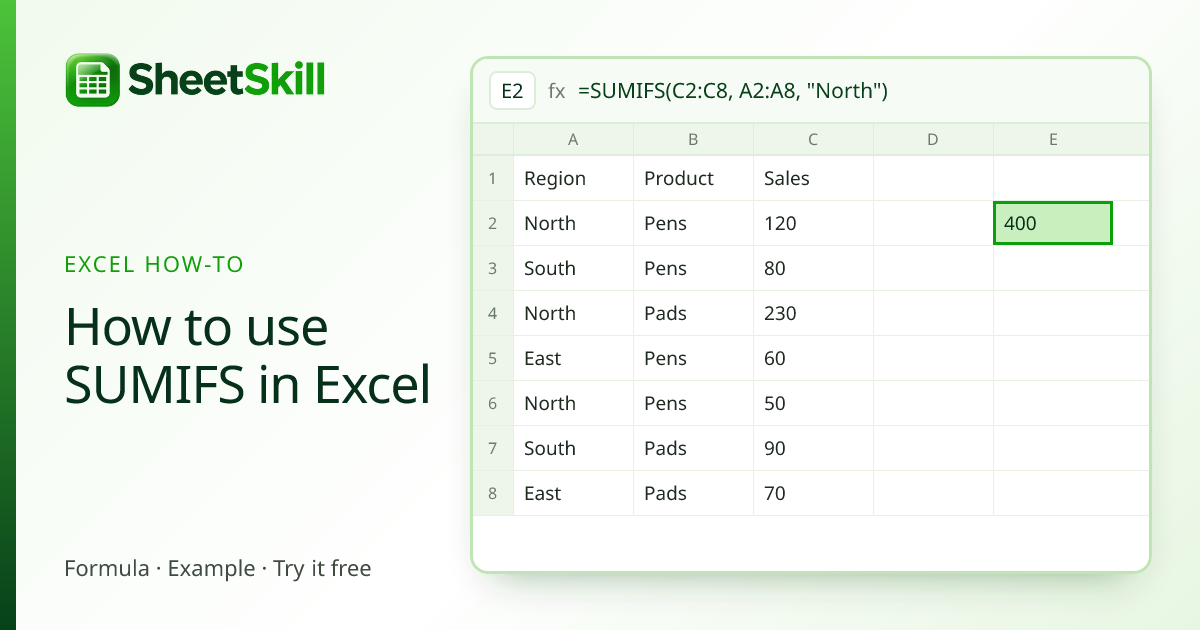
You often need totals for a specific slice of your data, such as sales for one region in one month, or hours logged by one person on one project. SUMIFS lets you add numbers that meet several conditions at once, without sorting or filtering.
Step by step
- Click the cell where you want the total.
- Type
=SUMIFS(and select the range of numbers to add (the sum_range). - Type a comma, then select the first range to check (criteria_range1), a comma, and the condition (criteria1).
- Repeat for any additional range and condition pairs, up to 127 pairs.
- Close the bracket and press Enter. The cell shows the total for rows that meet all conditions.
Try it here
Examples
1 Sum by one condition
Adds the values in C2:C8 where the region in A2:A8 is North. The result is 350 (120 + 230).
| A | B | C | D | E | F | |
|---|---|---|---|---|---|---|
| 1 | Region | Product | Sales | |||
| 2 | North | Pens | 120 | 400 | ||
| 3 | South | Pens | 80 | |||
| 4 | North | Pads | 230 | |||
| 5 | East | Pens | 60 | |||
| 6 | North | Pens | 50 | |||
| 7 | South | Pads | 90 | |||
| 8 | East | Pads | 70 | |||
| 9 |
=SUMIFS(C2:C8, A2:A8, "North")2 Sum with two conditions
Adds sales in C2:C8 where the region is North and the product is Pens. Only rows 2 and 6 match, so the result is 170 (120 + 50).
| A | B | C | D | E | F | |
|---|---|---|---|---|---|---|
| 1 | Region | Product | Sales | |||
| 2 | North | Pens | 120 | 170 | ||
| 3 | South | Pens | 80 | |||
| 4 | North | Pads | 230 | |||
| 5 | East | Pens | 60 | |||
| 6 | North | Pens | 50 | |||
| 7 | South | Pads | 90 | |||
| 8 | East | Pads | 70 | |||
| 9 |
=SUMIFS(C2:C8, A2:A8, "North", B2:B8, "Pens")3 Sum with a number condition
Adds sales in C2:C8 that are greater than 100. The matching values are 120 and 230, so the result is 350.
| A | B | C | D | E | F | |
|---|---|---|---|---|---|---|
| 1 | Region | Product | Sales | |||
| 2 | North | Pens | 120 | 350 | ||
| 3 | South | Pens | 80 | |||
| 4 | North | Pads | 230 | |||
| 5 | East | Pens | 60 | |||
| 6 | North | Pens | 50 | |||
| 7 | South | Pads | 90 | |||
| 8 | East | Pads | 70 | |||
| 9 |
=SUMIFS(C2:C8, C2:C8, ">100")Other ways to do it
| Formula | Use it when |
|---|---|
=SUMIF(A2:A8, "North", C2:C8) | You only have one condition; SUMIF is shorter and easier to read. |
=SUMPRODUCT((A2:A8="North")*(B2:B8="Pens")*C2:C8) | You need more complex logic (like OR conditions) or your ranges are not the same size. |
Practise it
Free exercises with instant feedback. No sign-up needed.
Common mistakes
- The sum_range and criteria_range are different sizes, so the result is wrong or you get #VALUE!. Make sure every range in the formula has the same number of rows and columns.
- Text criteria are not in quotes, so Excel shows an error or treats them as a name. Put text and operators in double quotes, like "North" or ">100".
- You use wildcards like * or ? but they don't work because the criteria are not text. Wildcards only work with text criteria; for numbers use operators like ">100".
Questions people also ask
What is the difference between SUMIF and SUMIFS?
SUMIF handles one condition; SUMIFS handles one or more. SUMIFS also puts the sum range first.
Can SUMIFS use dates?
Yes. Use a date or a cell reference as the criterion, for example =SUMIFS(C2:C8, D2:D8, ">="&DATE(2024,1,1)).
Why does my SUMIFS return 0?
Check that the criteria match exactly (no extra spaces), the ranges are the same size, and numbers are stored as numbers, not text.
Functions used
Every formula on this page was checked by SheetSkill’s spreadsheet engine. All how-to guides