

Use =SUMIF(range, criteria, sum_range) to add numbers where a condition is met. For example, =SUMIF(A2:A10, "North", B2:B10) adds all values in B2:B10 where A2:A10 equals "North".
=SUMIF(A2:A5, "North", B2:B5)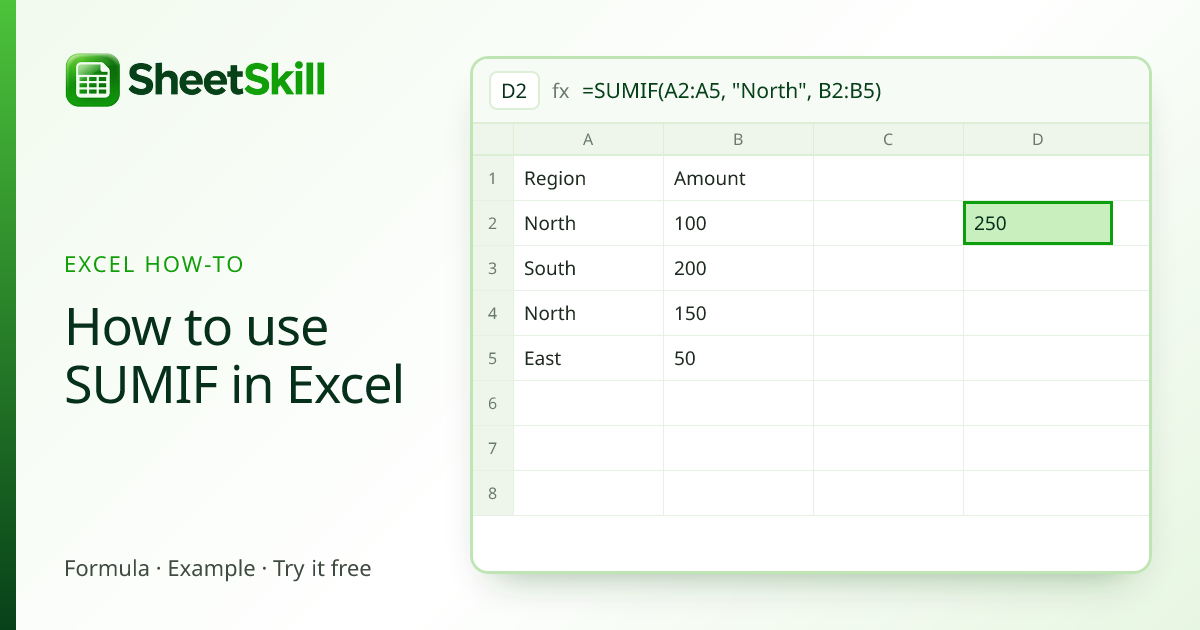
You often need to total only part of your data, such as sales for one region, expenses for one category, or hours for one project. SUMIF does exactly that: it looks down a range, checks each cell against your condition, and adds the matching numbers from another range.
Step by step
- Click the cell where you want the total.
- Type
=SUMIF(to start the formula. - Select the range to check (for example, A2:A100), type a comma, then enter your criteria in quotes (for example, "North").
- Type a comma, select the range with the numbers to add (for example, B2:B100), and close the bracket.
- Press Enter to see the result.
Try it here
Examples
1 Sum by one category
This adds all amounts in column B where the region in column A is North. It returns 250, the total of the two North rows.
| A | B | C | D | E | |
|---|---|---|---|---|---|
| 1 | Region | Amount | |||
| 2 | North | 100 | 250 | ||
| 3 | South | 200 | |||
| 4 | North | 150 | |||
| 5 | East | 50 | |||
| 6 |
=SUMIF(A2:A5, "North", B2:B5)2 Sum with a number condition
This adds all amounts in B2:B5 that are greater than 100. It returns 350, the sum of 200 and 150.
| A | B | C | D | E | |
|---|---|---|---|---|---|
| 1 | Item | Amount | |||
| 2 | Pens | 100 | 350 | ||
| 3 | Paper | 200 | |||
| 4 | Ink | 150 | |||
| 5 | Clips | 50 | |||
| 6 |
=SUMIF(B2:B5, ">100")3 Sum using a cell reference as criteria
This adds all amounts in B2:B5 where the product in A2:A5 matches the value in D3 (which is "Pens"). It returns 100, the amount for Pens.
| A | B | C | D | E | |
|---|---|---|---|---|---|
| 1 | Product | Amount | |||
| 2 | Pens | 100 | 150 | ||
| 3 | Paper | 200 | Pens | ||
| 4 | Pens | 50 | |||
| 5 | Ink | 150 | |||
| 6 |
=SUMIF(A2:A5, D3, B2:B5)Other ways to do it
| Formula | Use it when |
|---|---|
=SUMIFS(B2:B100, A2:A100, "North", C2:C100, ">100") | Use SUMIFS when you need to sum with more than one condition. |
=SUMPRODUCT((A2:A100="North")*(B2:B100)) | Use SUMPRODUCT when you prefer a formula that works in older Excel versions without SUMIFS. |
Practise it
Free exercises with instant feedback. No sign-up needed.
Common mistakes
- The criteria are not in quotes, so Excel shows an error or wrong result. Put text criteria in double quotes, like "North". For numbers, you can use ">100" or refer to a cell.
- The sum_range is a different size than the range, giving wrong totals. Make sure both ranges have the same number of rows and start on the same row.
- The sum_range is left out, so Excel adds the numbers in the criteria range instead. Always include the third argument if the numbers to add are in a different column.
Questions people also ask
What is the difference between SUMIF and SUMIFS?
SUMIF handles one condition. SUMIFS handles multiple conditions and is the better choice when you need to filter by two or more criteria.
Can SUMIF use wildcards?
Yes. Use * for any number of characters and ? for a single character, for example "Nor*" to match North, Northeast, and so on.
Why does SUMIF return 0?
The criteria probably don't match any cell exactly. Check for extra spaces, different capitalization, or numbers stored as text.
Functions used
Every formula on this page was checked by SheetSkill’s spreadsheet engine. All how-to guides