

Use =COUNTIFS(range1, criteria1, range2, criteria2, ...) to count rows that meet all conditions. Each range must be the same size, and criteria can be numbers, text, or cell references.
=COUNTIFS(B2:B8,"North")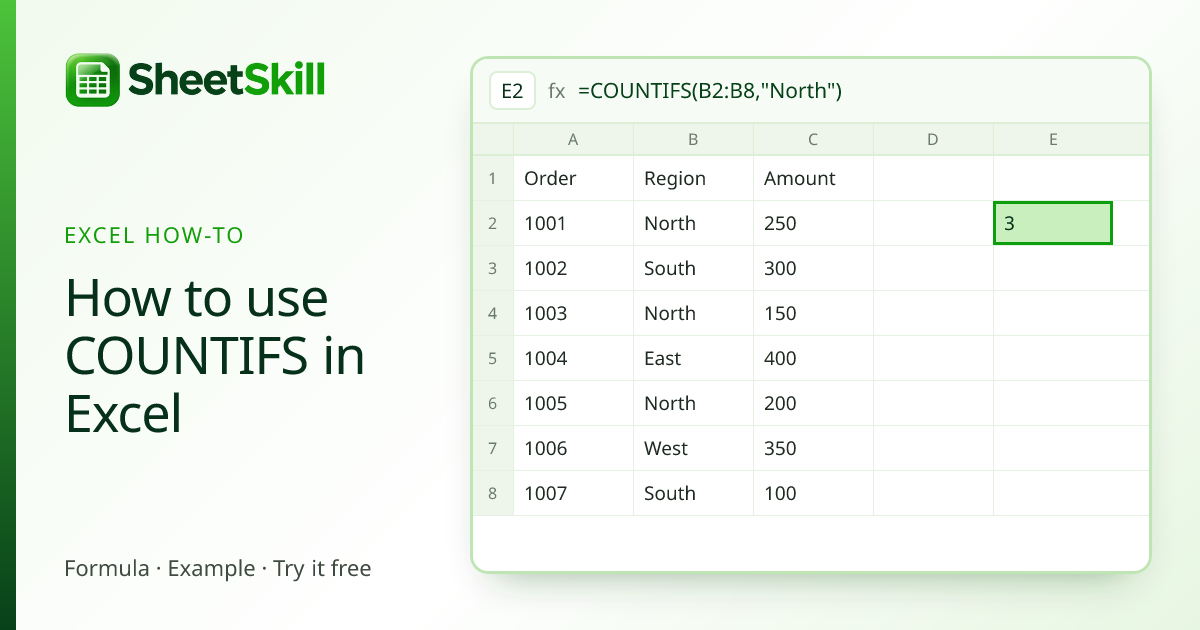
You often need to count how many rows meet more than one condition, such as orders from a certain region above a certain amount, or employees in a department with a specific status. COUNTIFS does this in one formula without sorting or filtering.
Step by step
- Click the cell where you want the count to appear.
- Type
=COUNTIFS(and then select the first range, type a comma, and enter the first criteria in quotes (for example"North"). - Type a comma, select the second range, type a comma, and enter the second criteria.
- Close the parenthesis and press Enter.
- To copy the formula down, drag the fill handle or copy and paste it; use absolute references like
$B$2:$B$100if the ranges should stay fixed.
Try it here
Examples
1 Count rows with one condition
This counts how many cells in B2:B8 contain "North". It returns 3 because North appears in rows 2, 5, and 7.
| A | B | C | D | E | F | |
|---|---|---|---|---|---|---|
| 1 | Order | Region | Amount | |||
| 2 | 1001 | North | 250 | 3 | ||
| 3 | 1002 | South | 300 | |||
| 4 | 1003 | North | 150 | |||
| 5 | 1004 | East | 400 | |||
| 6 | 1005 | North | 200 | |||
| 7 | 1006 | West | 350 | |||
| 8 | 1007 | South | 100 | |||
| 9 |
=COUNTIFS(B2:B8,"North")2 Count rows with two conditions
This counts rows where the region is North and the amount is greater than 200. Only row 2 (North, 250) matches, so it returns 1.
| A | B | C | D | E | F | |
|---|---|---|---|---|---|---|
| 1 | Order | Region | Amount | |||
| 2 | 1001 | North | 250 | 1 | ||
| 3 | 1002 | South | 300 | |||
| 4 | 1003 | North | 150 | |||
| 5 | 1004 | East | 400 | |||
| 6 | 1005 | North | 200 | |||
| 7 | 1006 | West | 350 | |||
| 8 | 1007 | South | 100 | |||
| 9 |
=COUNTIFS(B2:B8,"North",C2:C8,">200")3 Count with a cell reference as criteria
This counts rows where the region matches the value in E1 (North) and the amount is at least 200. Rows 2 and 6 match, so it returns 2.
| A | B | C | D | E | F | |
|---|---|---|---|---|---|---|
| 1 | Order | Region | Amount | North | ||
| 2 | 1001 | North | 250 | 2 | ||
| 3 | 1002 | South | 300 | |||
| 4 | 1003 | North | 150 | |||
| 5 | 1004 | East | 400 | |||
| 6 | 1005 | North | 200 | |||
| 7 | 1006 | West | 350 | |||
| 8 | 1007 | South | 100 | |||
| 9 |
=COUNTIFS(B2:B8,E1,C2:C8,">=200")Other ways to do it
| Formula | Use it when |
|---|---|
=SUMPRODUCT((B2:B8="North")*(C2:C8>200)) | When you need more complex logic that COUNTIFS cannot handle, such as OR conditions or calculations on the ranges. |
=COUNTIF(B2:B8,"North") | When you only have one condition; COUNTIF is simpler. |
Practise it
Free exercises with instant feedback. No sign-up needed.
Common mistakes
- Ranges have different sizes, so Excel returns #VALUE! or a wrong count. Make sure every range in COUNTIFS has the same number of rows and columns.
- Text criteria are not in quotes, so Excel shows an error or treats them as names. Put text criteria in double quotes, like "North", or refer to a cell that contains the text.
- Using wildcards like * or ? does not work as expected. COUNTIFS supports wildcards in text criteria; use * for any number of characters and ? for one character. For a literal * or ?, put a tilde before it (~*).
Questions people also ask
Can COUNTIFS use dates?
Yes. Use a date criteria like ">="&DATE(2024,1,1) or refer to a cell with a date. Make sure the range contains real dates, not text.
What is the difference between COUNTIF and COUNTIFS?
COUNTIF handles one condition; COUNTIFS handles one or more conditions and is the better choice when you need to combine criteria.
Why does COUNTIFS return 0 when I can see matches?
Check for extra spaces, numbers stored as text, or criteria that do not match exactly. Use TRIM or clean the data, and verify the criteria syntax.
Functions used
Every formula on this page was checked by SheetSkill’s spreadsheet engine. All how-to guides