

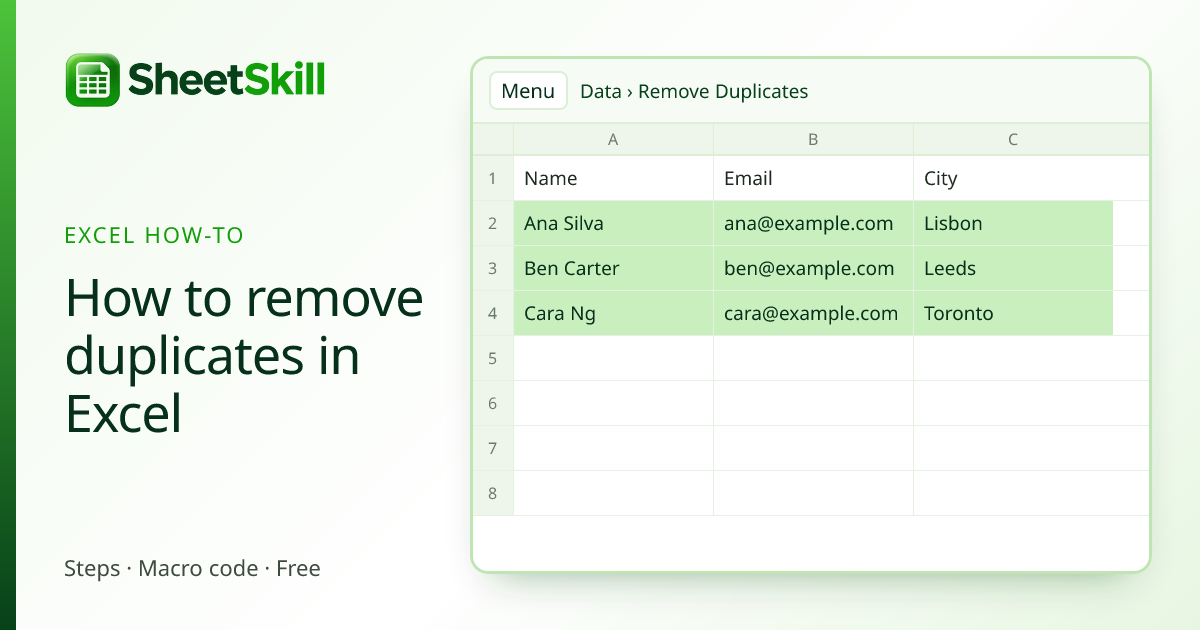
Select your data and go to Data › Remove Duplicates. Tick the columns to check, click OK, and Excel deletes every extra copy and tells you how many rows it removed.
You pasted a customer list from two exports and now the same people appear two or three times. Before you count, mail or merge, you need one clean row per person. Remove Duplicates does that in a few clicks and leaves the first copy in place.
Step by step
- Click any cell inside your data. If the list has headers, make sure they are in row 1.
- Go to the Data tab and click Remove Duplicates (in the Data Tools group).
- In the dialog, tick My data has headers so the header row is not treated as data.
- Tick the columns that decide what a duplicate is. To compare whole rows, leave all columns ticked; to compare only emails, tick just the Email column.
- Click OK. Excel shows a message like "4 duplicate values found and removed; 6 unique values remain".
- Check the result. If it is wrong, press Ctrl + Z straight away to bring the rows back.
On a Mac: On a Mac the button is under Data › Remove Duplicates too; the dialog looks the same.
Before and after
| A | B | C | |
|---|---|---|---|
| 1 | Name | City | |
| 2 | Ana Silva | ana@example.com | Lisbon |
| 3 | Ben Carter | ben@example.com | Leeds |
| 4 | Ana Silva | ana@example.com | Lisbon |
| 5 | Cara Ng | cara@example.com | Toronto |
| 6 | Ben Carter | ben@example.com | Leeds |
| A | B | C | |
|---|---|---|---|
| 1 | Name | City | |
| 2 | Ana Silva | ana@example.com | Lisbon |
| 3 | Ben Carter | ben@example.com | Leeds |
| 4 | Cara Ng | cara@example.com | Toronto |
The macro
Press Alt+F11, choose Insert › Module, paste the code, then press F5 to run it. Save the file as .xlsm to keep the macro.
Remove duplicate rows in the selected range
Sub RemoveDupesInSelection()
    ' Stop if nothing is selected
    If TypeName(Selection) <> "Range" Then Exit Sub
    ' Remove duplicates, treating row 1 as headers
    Selection.RemoveDuplicates Columns:=Array(1, 2, 3), Header:=xlYes
End SubWith a formula instead
| Formula | Use it when |
|---|---|
=UNIQUE(A2:C6) | You want a live, spill list that updates when the source changes, and you are on Microsoft 365 or Excel 2021. |
Practise it
Free exercises with instant feedback. No sign-up needed.
Common mistakes
- Only one column is ticked, so rows that differ in other columns are treated as duplicates and deleted. Press Ctrl + Z, then reopen Remove Duplicates and tick every column that makes a row unique.
- The header row is deleted because "My data has headers" was not ticked. Undo, then tick the box before clicking OK.
- The removal is permanent and there is no backup. Copy the sheet or save a copy of the file before removing duplicates.
Questions people also ask
Does Remove Duplicates keep the first or the last copy?
It keeps the first row it finds and deletes the later ones. Sort the data first if you want a different copy kept.
Can I remove duplicates without deleting the rows?
Yes. Use a formula such as =UNIQUE(A2:A100) in an empty column, or Conditional Formatting › Highlight Cells Rules › Duplicate Values to colour them first.
Why does Excel say no duplicates were found?
The values probably differ by a space or by case. Use TRIM and clean the data, or compare only the column that really defines a duplicate.
Functions used
Steps written for Excel for Microsoft 365 on Windows. All how-to guides