

Type =A1+B1 in a cell and press Enter, where A1 and B1 hold the two numbers. Excel shows the sum instantly.
=A2+B2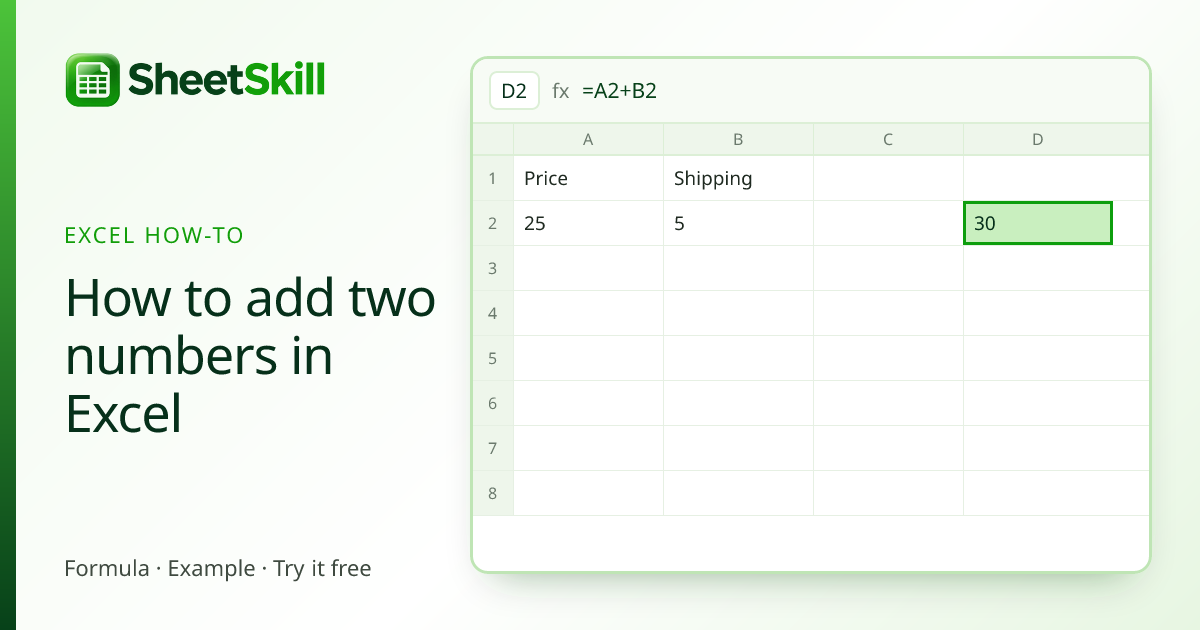
You often need to add two numbers in Excel, for example when you have a price and a shipping cost and want the total, or two hours worked on different days and want the combined time. Instead of using a calculator, you can let Excel do the math with a formula so the result updates automatically if the numbers change.
Step by step
- Click the cell where you want the result to appear.
- Type
=to start a formula, then type the first cell reference, a plus sign, and the second cell reference, for example=A1+B1. - Press Enter. The cell shows the sum of the two numbers.
- To add many rows, click the cell with the formula, grab the small square at its bottom-right corner, and drag it down (or double-click it) to copy the formula to the rows below.
Try it here
Examples
1 Add two cells in the same row
This adds the price in A2 and the shipping cost in B2. The result appears in D2 and shows the total cost.
| A | B | C | D | E | |
|---|---|---|---|---|---|
| 1 | Price | Shipping | |||
| 2 | 25 | 5 | 30 | ||
| 3 |
=A2+B22 Add two numbers typed directly in the formula
You can also put the numbers themselves in the formula instead of cell references. This adds 10 and 15 and returns 25. Use this for a quick one-time calculation.
| A | B | C | D | E | |
|---|---|---|---|---|---|
| 1 | Number 1 | Number 2 | |||
| 2 | 10 | 15 | 25 | ||
| 3 |
=10+153 Add two columns row by row
Here each row has a quantity and a unit price. The formula in D2 multiplies them to get the line total. When you copy the formula down, each row gets its own total.
| A | B | C | D | E | |
|---|---|---|---|---|---|
| 1 | Item | Quantity | Unit Price | ||
| 2 | Pens | 3 | 2 | 6 | |
| 3 | Notebooks | 2 | 5 | ||
| 4 | Erasers | 5 | 1 | ||
| 5 |
=B2*C2Other ways to do it
| Formula | Use it when |
|---|---|
=SUM(A1,B1) | Use SUM when you might later add more cells to the same calculation; it is easier to extend than a chain of plus signs. |
=A1+B1+C1 | Use this when you need to add three or more specific cells and do not want to use the SUM function. |
Practise it
Free exercises with instant feedback. No sign-up needed.
Common mistakes
- You type the numbers without an equals sign, like
10+15, and Excel treats it as text. Always start a formula with=, for example=10+15or=A1+B1. - You get a
#VALUE!error because one of the cells contains text instead of a number. Check that the cells you are adding contain only numbers. Remove spaces or text, or useSUMwhich ignores text. - You copy the formula but the cell references do not change, so every row shows the same total. Make sure the references are relative (like
A1, not$A$1). Use the fill handle to copy down, or press Ctrl+D after selecting the range.
Questions people also ask
How do I add a whole column of numbers in Excel?
Use =SUM(A1:A10) to add all numbers from A1 to A10. You can also click the AutoSum button on the Home tab.
Can I add numbers from different sheets?
Yes. Use a formula like =Sheet1!A1+Sheet2!B2 to add cells from different worksheets.
Why does my formula show the formula text instead of the result?
The cell is probably formatted as Text. Change the format to General, then re-enter the formula.
Functions used
Every formula on this page was checked by SheetSkill’s spreadsheet engine. All how-to guides