

Use the IF function to test a condition and return one value if true and another if false: =IF(A2>10,"Yes","No").
=IF(B2>=60,"Pass","Fail")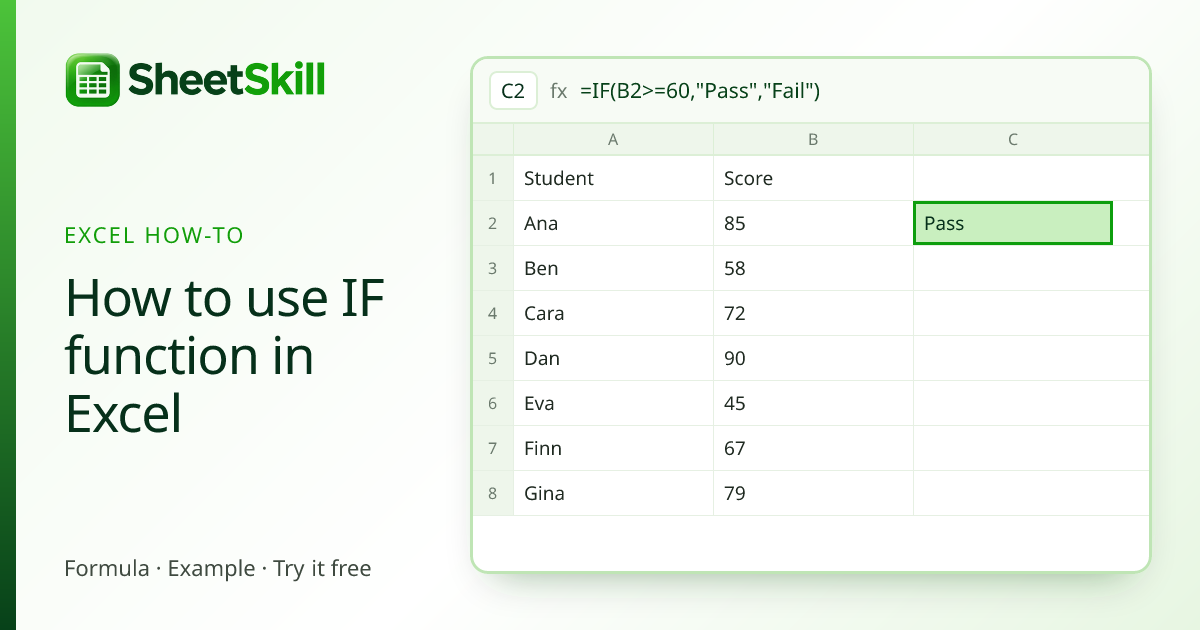
You often need Excel to make a decision for you, like marking sales as "Target met" or "Below target", or flagging overdue tasks. The IF function lets you set a logical test and choose what to show for each outcome, so your spreadsheet can respond automatically instead of you checking each row by hand.
Step by step
- Click the cell where you want the result (for example, C2).
- Type =IF( to start the formula.
- Enter the condition, then a comma. For example: A2>10
- Type the value to return if true, a comma, and the value if false. For example: "Yes","No"
- Close the bracket and press Enter. The cell shows the result.
- Drag the fill handle down to copy the formula to other rows.
Try it here
Examples
1 Simple pass/fail test
This checks if the score in B2 is at least 60. If it is, the formula returns "Pass"; otherwise it returns "Fail".
| A | B | C | D | |
|---|---|---|---|---|
| 1 | Student | Score | ||
| 2 | Ana | 85 | Pass | |
| 3 | Ben | 58 | ||
| 4 | Cara | 72 | ||
| 5 | Dan | 90 | ||
| 6 | Eva | 45 | ||
| 7 | Finn | 67 | ||
| 8 | Gina | 79 | ||
| 9 |
=IF(B2>=60,"Pass","Fail")2 Return a number instead of text
Here the formula returns a 10% bonus if sales in B2 are over 1000, otherwise 0. The result is a number you can sum or format as currency.
| A | B | C | D | |
|---|---|---|---|---|
| 1 | Item | Sales | ||
| 2 | Pens | 1200 | 0.1 | |
| 3 | Pencils | 800 | ||
| 4 | Notebooks | 1500 | ||
| 5 | Erasers | 300 | ||
| 6 | Markers | 1100 | ||
| 7 | Folders | 950 | ||
| 8 | Staples | 1300 | ||
| 9 |
=IF(B2>1000,0.1,0)3 Nested IF for three categories
This uses two IF functions to assign a grade: "High" if B2 is at least 80, "Medium" if at least 50, and "Low" otherwise. The second IF is placed where the false result would go.
| A | B | C | D | |
|---|---|---|---|---|
| 1 | Name | Score | ||
| 2 | Ana | 85 | High | |
| 3 | Ben | 45 | ||
| 4 | Cara | 72 | ||
| 5 | Dan | 90 | ||
| 6 | Eva | 30 | ||
| 7 | Finn | 67 | ||
| 8 | Gina | 55 | ||
| 9 |
=IF(B2>=80,"High",IF(B2>=50,"Medium","Low"))Other ways to do it
| Formula | Use it when |
|---|---|
=IFS(B2>=80,"High",B2>=50,"Medium",TRUE,"Low") | Use IFS when you have several conditions; it is easier to read than nested IFs (available in Excel 2019 and later). |
=IF(AND(B2>=60,C2>=60),"Pass","Fail") | Use AND inside IF when you need all conditions to be true. |
=IF(OR(B2>=90,C2>=90),"Bonus","No bonus") | Use OR inside IF when any one condition being true is enough. |
Practise it
Free exercises with instant feedback. No sign-up needed.
Common mistakes
- Forgetting to put text values in double quotes, like =IF(A2>10,Yes,No), which causes a #NAME? error. Wrap text results in double quotes: =IF(A2>10,"Yes","No").
- Using the wrong comparison operator, such as > instead of >=, so boundary values are classified incorrectly. Double-check whether you need >, >=, . For example, use >=60 to include 60 as a pass.
- Nesting too many IFs without proper parentheses, leading to errors or wrong results. Build the formula step by step, or switch to the IFS function for multiple conditions.
Questions people also ask
Can I use IF to return a blank cell?
Yes. Use two double quotes with nothing between them: =IF(A2="","",A2*2). This returns an empty text string when A2 is blank.
What is the difference between IF and IFS?
IF handles one condition (or nested conditions), while IFS lets you list multiple conditions and results in a single function, which is easier to read and less error-prone.
Why does my IF formula show #VALUE!?
This often happens when you compare text to a number without quotes, or when a cell contains an error. Check that text values are in quotes and that referenced cells contain valid data.
Functions used
Every formula on this page was checked by SheetSkill’s spreadsheet engine. All how-to guides